
Makeover your Google homepage using these simple suggestions! Make it your own so that it reflects your motivation, style, and interests. Improve your browsing experience today and change your Google background.
Overview of Google Background Options
Typically, the default Google homepage background is a crisp, white interface with the recognizable Google logo prominently displayed in the centre.
Google, however, gives you a number of options to change the background to suit your tastes. The various ways you can customize your Google background are listed below:
Google Themes
Google provides a collection of predefined themes that allow you to change the background image, color scheme, and overall appearance of the Google homepage. Themes can be accessed by clicking the “Settings” gear icon in the top-right corner of the Google homepage and choosing “Themes.” From there, you can select from a variety of Google-provided themes, such as natural landscapes, creative designs, and more. As a custom background, you can also upload your own photo.
Google Chrome extensions
There are a number of extensions for the Google Chrome web browser that let you change the background of the Google homepage. Your browsing experience is enhanced by these extensions’ additional features and customization options. One well-known extension is “Custom Google Background,” which enables you to choose any image from your computer or the internet as the background of your Google homepage. By visiting the Chrome Web Store and looking up “Google background” or related terms, you can find these extensions.
Third-party websites
There are also independent websites that focus on offering individualized Google backgrounds. These websites provide a wide variety of options, including scenes from movies, abstract art, and natural landscapes. A couple of well-known third-party websites are “My Google Backgrounds” and “Google Backgrounds.” These websites frequently offer a quick process to upload your own background image or select one from their library.
It’s important to keep in mind that depending on your location and the Google version you are using, some customization options might not be available at all.
Furthermore, some customization options might need extra programs or browser add-ons. To maintain the security of your browsing experience, make sure to only download extensions from reputable sources or visit third-party websites.
Keep in mind that any changes you make to your Google homepage background will only affect your particular device or browser and not how Google appears to other users.
How to Change Google Background
To change the background on Google, you have a few different options depending on which Google service you are using. Here’s a step-by-step guide for each option:
How to Change Google Background with Google Themes?
To change the Google background using Google Themes, you can follow these step-by-step instructions:
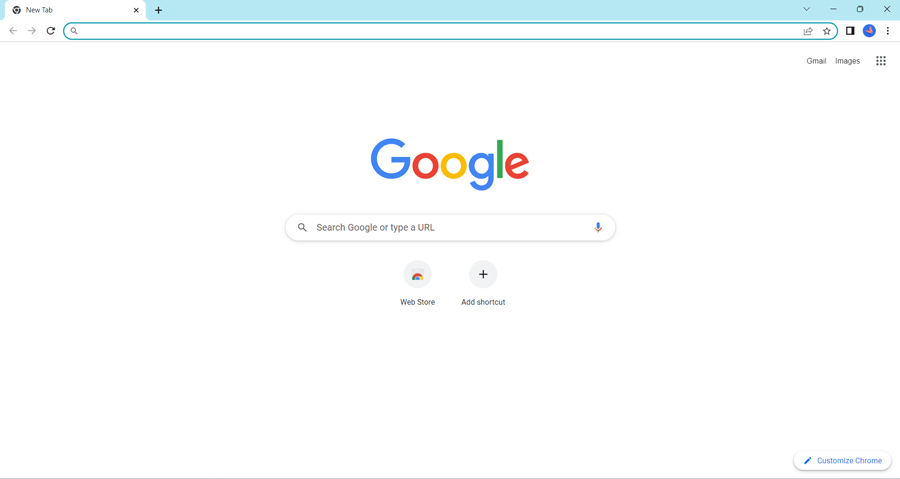
- Step 1: Go to the Google homepage by opening a web browser.
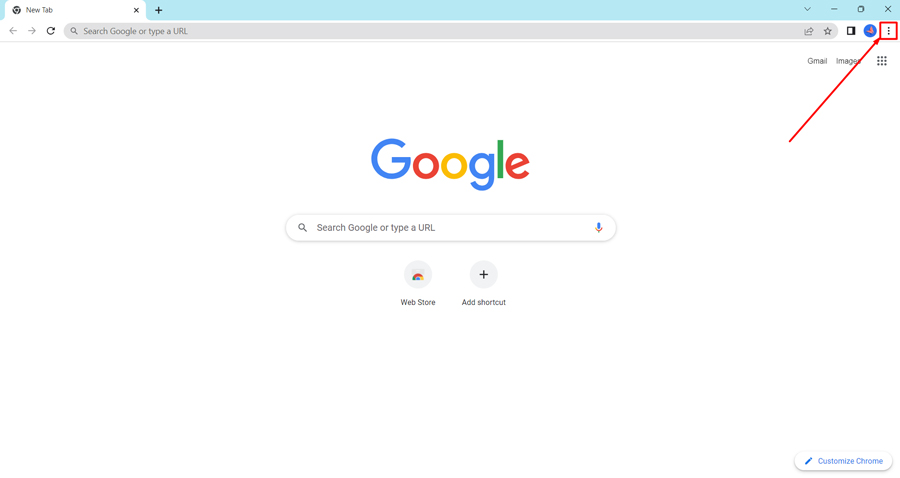
- Step 2: In the top-right corner of the browser window, click on the three-dot menu icon (⋮). This will open a drop-down menu.
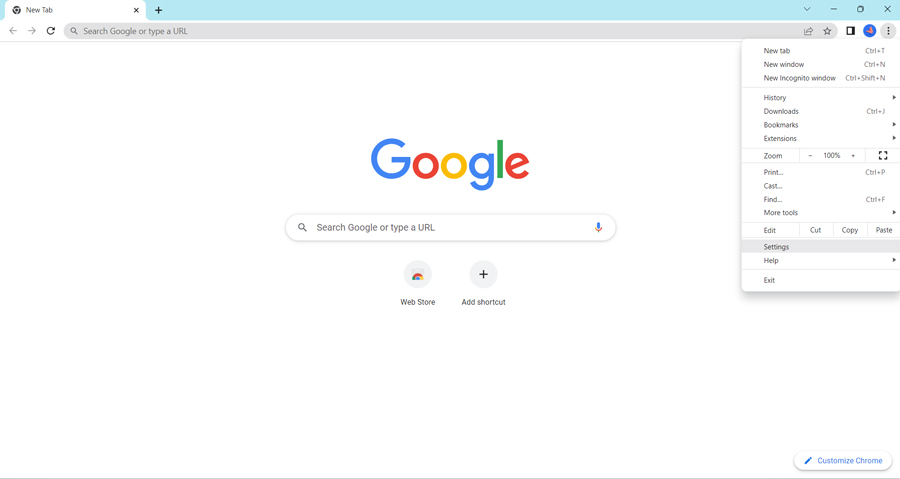
- Step 3: From the drop-down menu, hover over the “Settings” option and click on it.
- Step 4: Navigate to the “Appearance” section located within the Settings page. Simply scroll down until you locate this section and then click on the “Theme” option. All available themes will be displayed for you to choose from.

- Step 5: A new window will appear, displaying a variety of predefined themes provided by Google.
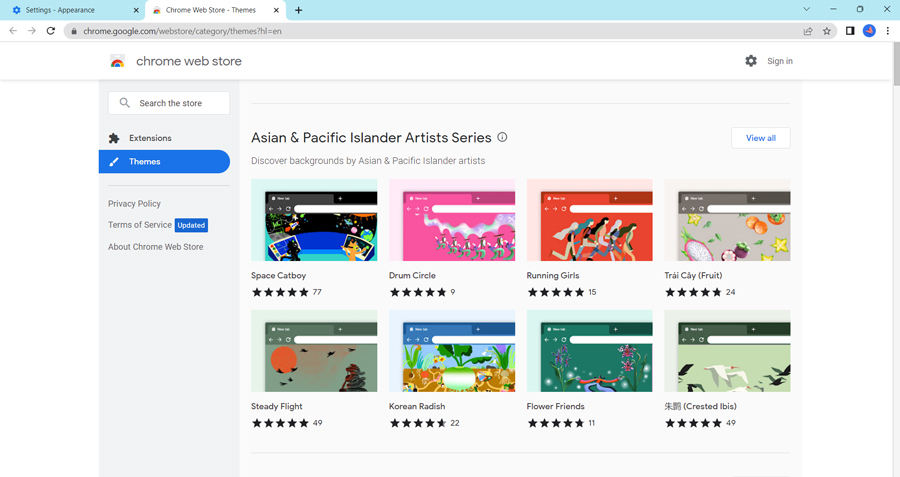
- Step 6: Browse through the available themes by scrolling up or down.
- Step 7: To preview a theme, click on it once. This will show you a larger view of the theme and how it will look on the Google homepage
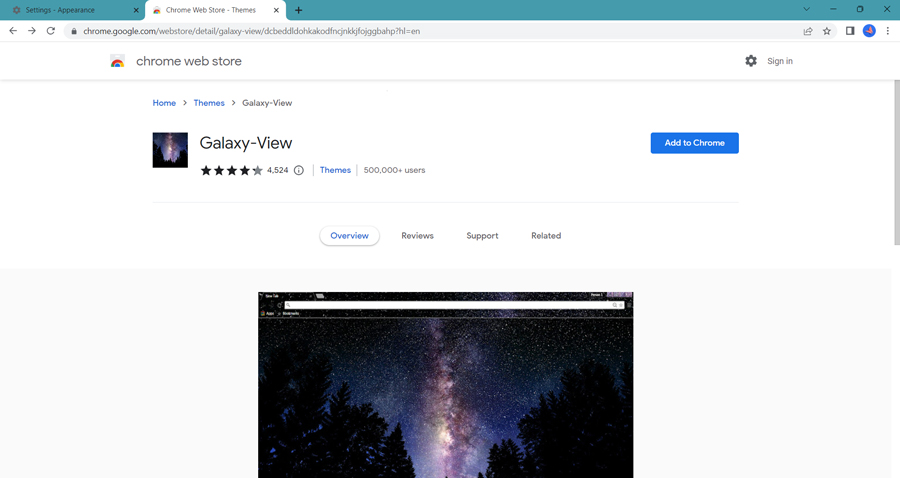
- Step 8: If you find a theme you like, click the “Add to Chrome” button on the top of the page.
- Step 9: The selected theme will be applied as your new Google background immediately.
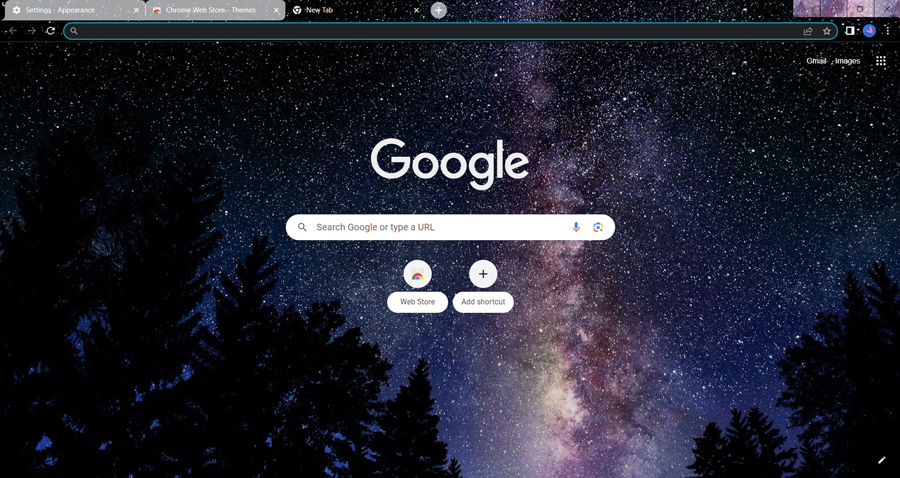
- Step 10: To customize the theme further, click on the “Customize” button in the bottom-right corner of the Themes window.
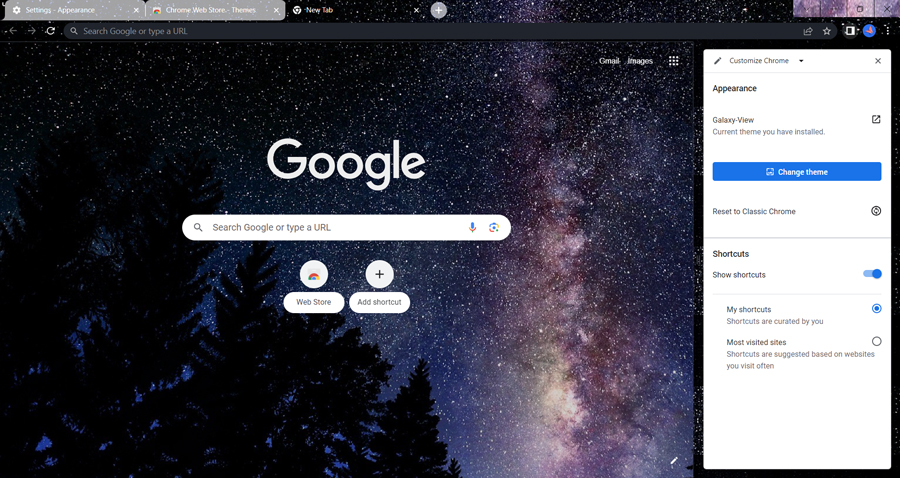
- Step 11: In the customization options, you can change the background image, color scheme, and other visual elements to your liking or reset to classic Chrome.
- Step 12: Once you’re satisfied with the customization, simply close the window. Google Chrome saves your changes automatically.
How to Change Color in Google Chrome?
To change the color of your Google Chrome browser, you can follow these steps:
- Step 1: In the Chrome Settings page, you’ll see a “Customize your Chromes profile” option. Click on this button to see the available options.
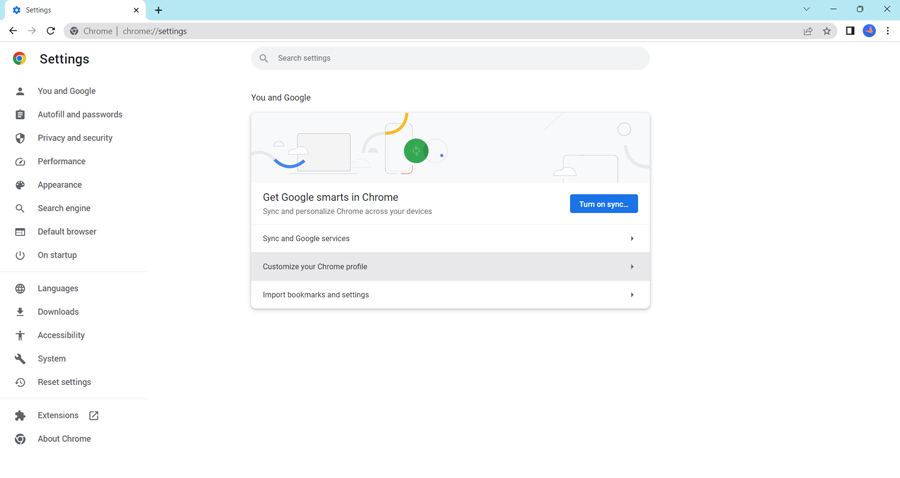
- Step 2: Select the color theme you prefer from the available options using the dropper tool to pick your own color by clicking on the circle.

- Step 6: As soon as you select a theme, you should see the changes take effect immediately. The Chrome browser interface, including the tabs, toolbar, and menus, will be updated with the new color scheme.
- Step 7: If you want to revert to the default Chrome theme find the “Appearance” section in the side menu and select “Reset to Default”.
How to Change Google Background: Creative Ideas (Personalized)
Certainly! Here’s a step-by-step guide on how to change the Google background using personalized images and wallpaper resources:
How to Upload Image for Google Background?
- Step 1: Prepare the image you want to use as your Google background. It can be a personal photo, a favourite quote in an image format, an image related to your hobbies or interests, or even an AI-generated image.
- Step 2: Ensure the image meets Google’s guidelines and is appropriate for use as a background.
- Step 3: Open your web browser.
- Step 4: In the bottom-right corner of the browser window, click on the button “Customize Chrome”.
- Step 5: In the side menu “Appearance” that appears, click on the “Change theme” option.
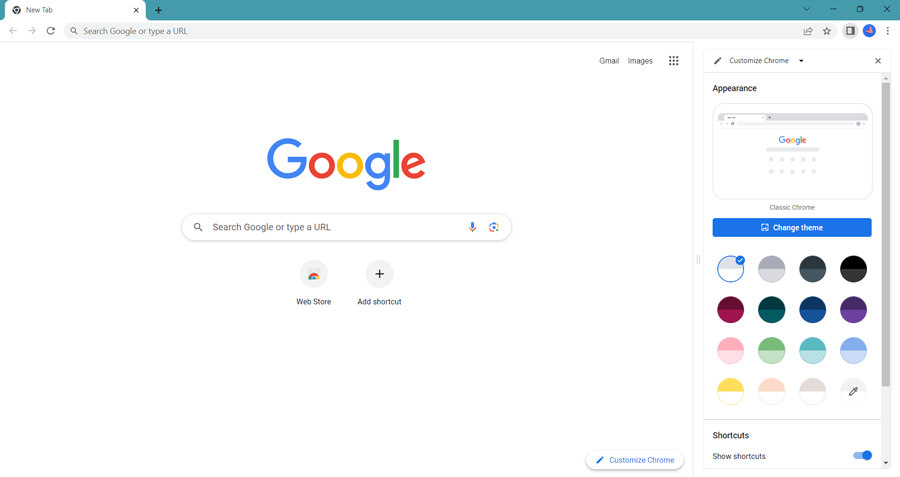
- Step 6: Then click on the “Upload an image” option.

- Step 7: A file explorer window will appear. Navigate to the location where your desired image is saved on your computer.
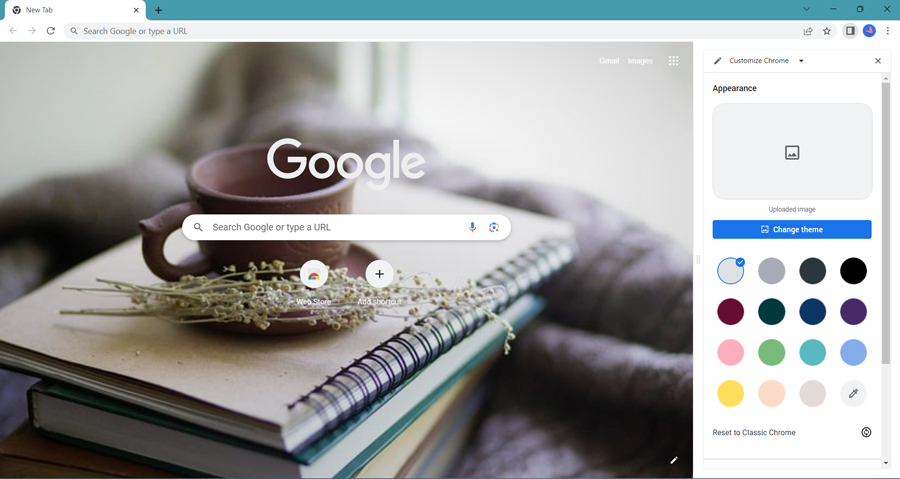
- Step 8: Select the image file and click “Open” or “Choose” to upload it as your Google background.
- Step 9: The uploaded image will be set as your new Google background.
How to Change Google Background with Wallpaper Resources?
- Step 1: Open your web browser and visit a wallpaper resource website, such as Visme Wallpaper Maker.
- Step 2: Explore the available options and browse through the collections or categories of wallpapers.
- Step 3: Select a wallpaper that resonates with your preferences, such as an image related to your hobbies, interests, or favourite quotes.
- Step 4: Customize the wallpaper if the website offers such features, such as adding text or applying filters. Follow the instructions provided by the website.
- Step 5: Once you’re satisfied with the customization, download the wallpaper to your computer.
- Step 6: Open your web browser and go to the Google homepage.
- Step 7: Look for the “Settings” gear icon in the top-right corner of the page and click on it.
- Step 8: In the drop-down menu, select “Themes.”
- Step 9: In the Themes window, click on the “Custom” or “Upload an image” option.
- Step 10: A file explorer window will appear. Navigate to the location where your downloaded wallpaper is saved on your computer.
- Step 11: Select the wallpaper file and click “Open” or “Choose” to upload it as your Google background.
- Step 12: The wallpaper will be set as your new Google background.
When using images from the internet, keep in mind to respect copyright laws and make sure you have the required rights or permissions to use and upload the images as your Google background.
How to Revert to the Default Theme of Google Chrome?
To revert to the default theme of Google Chrome, you can follow these steps:
- Step 1: Open Google Chrome on your computer.
- Step 2: In the top-right corner of the browser window, click on the three-dot menu icon (⋮). This will open a drop-down menu.
- Step 3: From the drop-down menu, hover over the “Settings” option and click on it. This will open the Chrome Settings page in a new tab.
- Step 4: Scroll down on the Settings page until you find the “Appearance” section.
- Step 5: In the “Appearance” section, you’ll see a “Theme” option with the button “Reset to Default.”
- Step 6: Click on it.
- Step 7: The theme of Google Chrome will revert to the default one immediately, and you’ll see the changes reflected in the browser’s interface.
Note that the exact appearance and wording of the options may vary slightly depending on the version of Google Chrome you’re using.
Benefits of Customizing Google Background
Customizing the Google background can bring several benefits and enhance the user’s online experience in various ways. Here are some advantages of personalizing the Google Chrome background:
Boosts Motivation
You can create a visually stimulating environment by choosing a background image that corresponds with your interests, hobbies, or goals. It can remind you of your goals and the things you’re passionate about. A personalized background can improve your mood and increase your motivation while using Google, whether it is an image of your favorite activity, a motivational quote, or a beautiful natural scene.
Increases Productivity
Customizing the Google background can help create a personalized workspace that promotes focus and productivity. Choosing a clean and uncluttered background or an image that evokes a sense of calm can minimize distractions and help you stay more engaged with your tasks. On the other hand, vibrant and energetic backgrounds can infuse energy into your work environment, enhancing creativity and productivity.
Reflects Individuality
You can express your unique personality and enhance the distinctiveness of your online experience by customizing the Google background. It gives your browsing a more personalized feel if you use your own images, favorite quotes, or pictures of things you enjoy doing. When others see your personalized background during presentations or shared screen sessions, it can also serve as a conversation starter or a reflection of your personality.
Provides Visual Appeal
Sometimes the plain, white Google homepage can seem monotonous or uninteresting. You can improve the look and feel of your browsing experience by customizing the background with eye-catching images. You’ll look forward to seeing a friendly and attractive interface each time you open a new tab or go to the Google homepage thanks to this.
Conclusion
Readers can explore and discover the option that best suits their preferences by encouraging them to try various ways of customizing the Google background.
The decision is theirs to create a background that resonates with their particular tastes and preferences, whether they do so by using Google Themes, Chrome Extensions, uploading their own photos, or using wallpaper resources.
A simple and reversible customization that can improve your online experience and make your browsing environment more enjoyable is customizing the Google background.


