Have you ever taken a picture and there was an object in the background that you wished you could remove? Maybe a tree branch is growing out of your subject’s head, or somebody is walking through the shot. No matter how carefully you watch what’s happening behind you while taking a picture, sometimes these things happen.
But don’t worry – there are ways to remove them using photo editing software! This blog post will show you how to remove unwanted objects from your photos using Photoshop.
Let’s get started!
How To Remove Unwanted Object In Photoshop
Sometimes, when taking a photo, there’s an object you don’t want in the shot. These unwanted objects can ruin a picture, whether it’s a stranger walking by or an ugly sign in the background. Fortunately, there are ways to remove them from your images without complicated equipment or software.
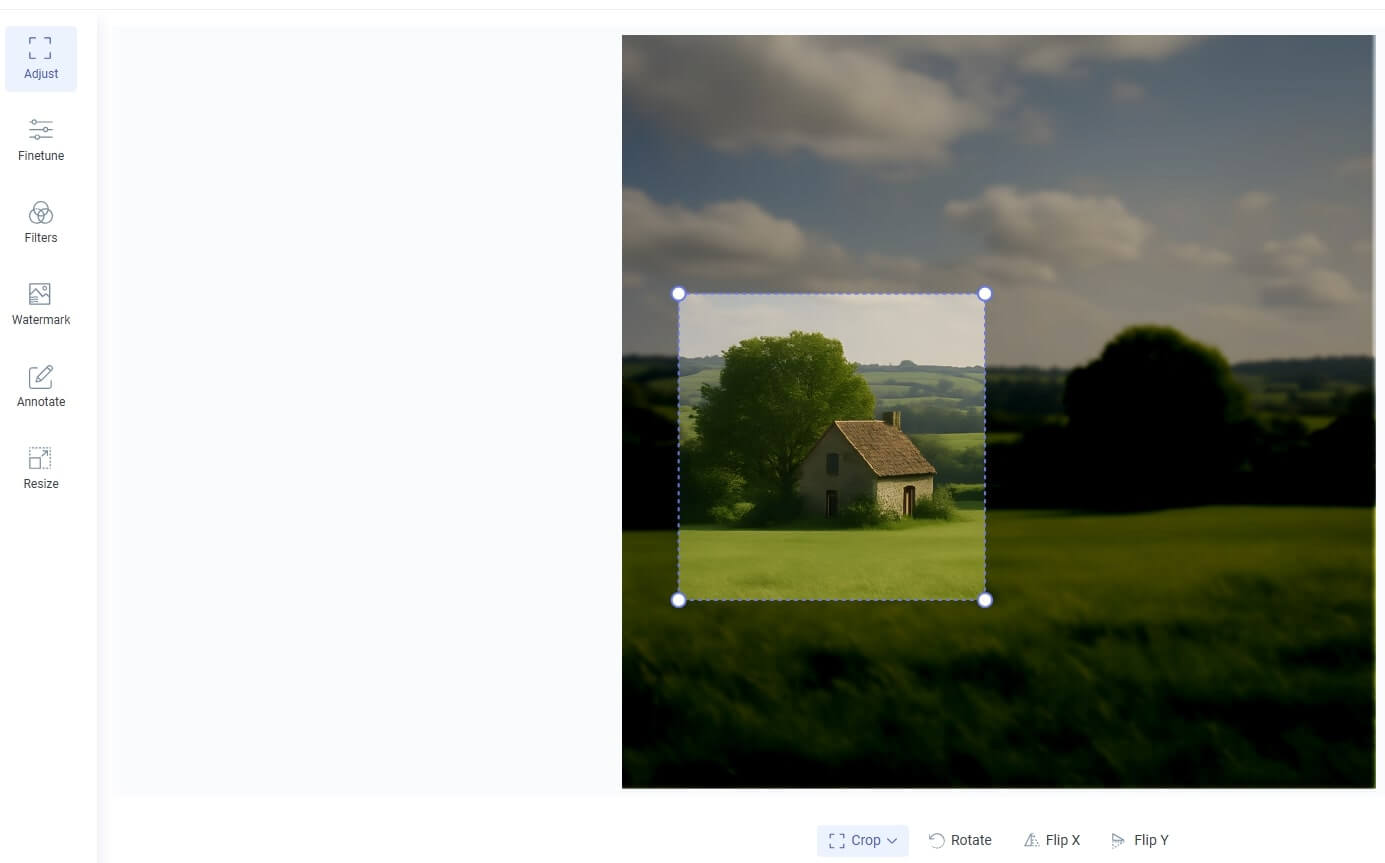
A cropping tool can easily remove unwanted objects from a photo. Cropping allows you to remove part of the image, and with careful planning, you can usually remove the unwanted object without it being noticeable.
For example, if a person is walking by in the background of your photo, you can generally crop them out without it being obvious.
How to Edit Out an Unwanted Object in the Photo
You can use photo editing software to remove unwanted objects from your photos. Various software programs are available; many have tools designed specifically for removing items. With these tools, you can select the object you want to remove, and the software will automatically erase it from the photo. As a result, this method is usually faster than others.
The following steps will help you remove unwanted objects in Photoshop:
- Open the photo in Inpaint and select the “Rectangular Marquee Tool” from the toolbar.
- Draw a rectangle around the object you want to delete.
- Copy and paste the selection into a new layer to separate it from the rest of the image.
- Delete the original layer with the object in it.
- Use the “Eraser Tool” to erase any remaining traces of the object from the photo.
- After removing the object, save the image as a JPG, PNG, or PDF. You’re done!
How To Delete Unwanted Object From Photo Automatically
Save yourself a headache with Inpaint’s online photo object removal tool! You can quickly and easily remove unwanted objects or people from your photos with a few clicks. Whether you’re restoring a family photo or cleaning up a landscape shot, Image Upscaler has you covered. Get your photos back to perfection in just seconds!
Take People out of Pictures
Inpaint can help you remove the object from photos with fantastic accuracy. You don’t need to be a Photoshop expert or have hours to work on an image.
With just a few clicks, you can effortlessly erase any person from the background and achieve high-quality results in no time. No more tedious manual selection and healing processes, just a few steps with Inpaint will do the job for you.
Remove Unwanted People From Photo Background
If you’re looking for a quick and easy way to remove people from photos, image inpaint is the perfect solution. The process is straightforward – upload your image, and Inpaint will work its magic. You don’t have to worry about the quality of the outcome because it’s guaranteed to be perfect.
Inpaint online even recreates the background details, so it looks like the people were never there – no one will be able to tell that you removed someone from the photo. You’ll love how simple and effective Inpaint makes photo editing.
Remove Unwanted Text From Photo App
Trying to figure out how to free remove unwanted items from photos? Inpaint-free online remover is a must-have for any digital photography enthusiast! Not only does it remove people, but it can also help you get rid of other things in your photos that may be distracting or unwanted.
With Image Upscaler, it’s never been easier to remove people, text, logos, date stamps, trash cans, and other items quickly and efficiently. Get rid of all the distractions in your photos and make them look their absolute best! With Image Upscaler’s free online unwanted object remover, you can quickly get the perfect shot every time.
How does Inpaint operate on an Al basis?
Inpaint uses a powerful Artificial Intelligence (AI) algorithm to accurately identify and remove unwanted objects from your photos. The software detects areas of the image containing unwanted objects and then uses information from surrounding areas to replace them with a realistic background.
This process is repeated until all unwanted things are removed, creating a photo that looks like the objects were never there. Inpaint can accurately remove people, cars, buildings, and other elements without showing evidence that they are ever-present.
The AI algorithm can also detect the edges of an object, allowing it to replace it seamlessly with the background, creating a natural-looking photo. Inpaint is the perfect solution for removing unwanted elements from photos and creating professional-looking images.
Benefits of Using Inpaint to Remove Unwanted Objects
Inpaint is an easy-to-use tool that can make editing photos a breeze.
It uses advanced algorithms to detect unwanted objects in the picture and digitally remove them without damaging the rest of the image. It means you can quickly eliminate any excess clutter or distracting elements in the photo without manually erasing each one.
Plus, Inpaint’s algorithms can fill gaps left behind by the removed objects for a seamless look. In addition, you can use Inpaint to quickly retouch photos and fix minor blemishes such as red-eye or skin imperfections. This way, you can ensure your photos look how you want them without much fuss or headache.
Final Words
There’s no need to fret over complicated editing programs or spend hours trying to erase a person or object from your photo. With Inpainting, you can remove unwanted objects in a few clicks and get the desired results.
By using AI technology, Inpaint analyses the surrounding areas and text automatically and then recreate the image. Now you can focus on creating beautiful photos without worrying about how you’re going to remove unwanted elements.